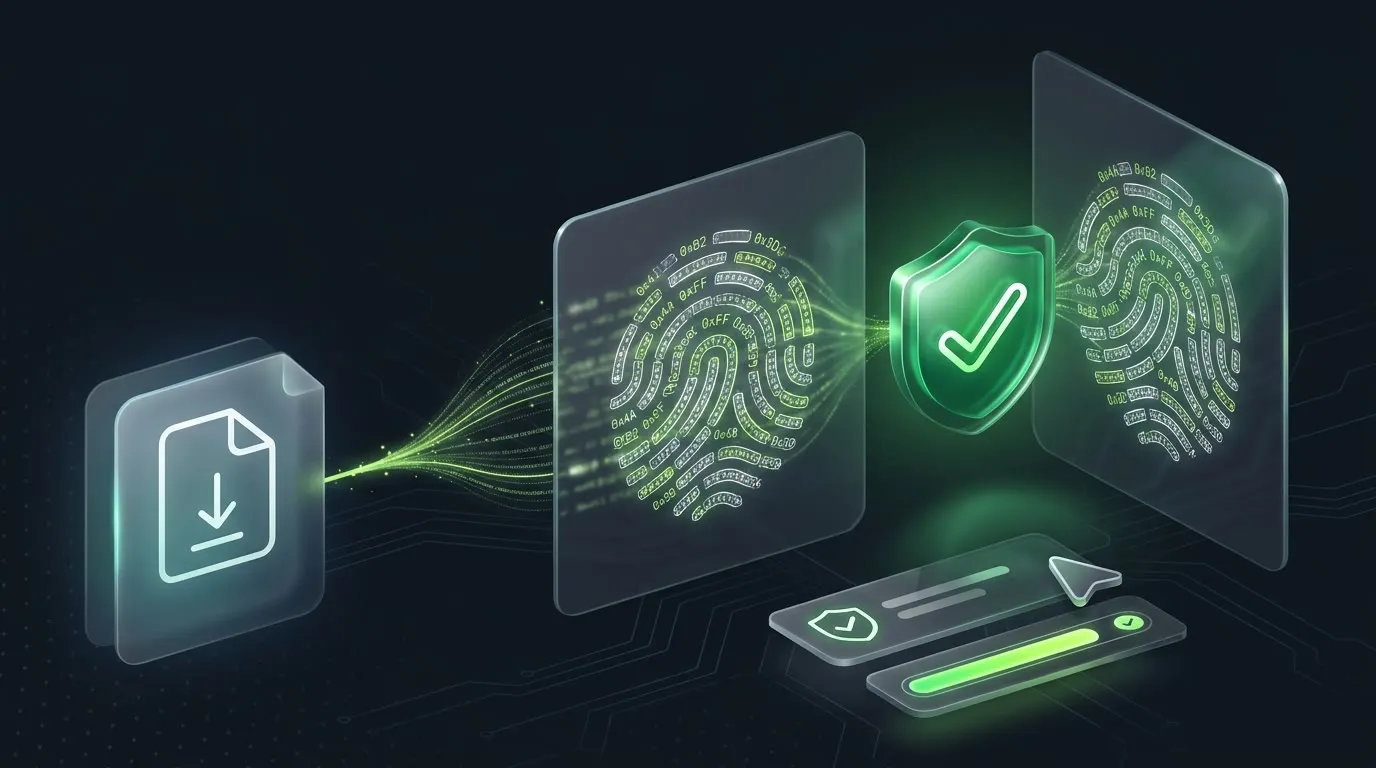
ChecksumVerify: One Right-Click to Verify Your Downloads
A small open-source Windows tool that checks a download's checksum from the right-click menu. This post covers why checksums matter and how the tool is built with .NET and WinUI 3.
TL;DR
ChecksumVerify is a free, open-source (MIT) Windows tool: right-click a download, pick Verify Checksum, get a green or red banner. No terminal, no comparing 64 characters by eye, nothing running in the background.
Yes, I know. Tools that do the same thing already exist. Get-FileHash has been sitting in your terminal the whole time, and a few polished utilities have been doing this for years. I built this one anyway, for the most noble of reasons: because I can. 😄
The rest of this post explains what checksums can and can't prove, and how the tool is built.
Why I built this
You've probably seen it on a download page: next to the installer there's a long string of letters and numbers labelled SHA-256. The idea is that you check the file you downloaded against that string. Honestly, I sometimes forget to do it, and I suspect I'm not the only one. On Windows, checking means opening a terminal, typing something like Get-FileHash .\setup.exe or certutil -hashfile setup.exe SHA256, and then comparing 64 characters by eye.
So I built ChecksumVerify, a small, free, open-source (MIT) Windows tool that turns this into a right-click.
This post has two parts. Part 1 is for everyone: what the tool does, what a checksum is, and what it can and can't prove. Part 2 is for developers: how it's designed, the trade-offs I made, and how to build and run it locally.
Part 1: What it does
The workflow
- On the download page, copy the published hash to the clipboard.
- In Explorer, right-click the downloaded file and pick Verify Checksum. On Windows 11 it's under Show more options (or press
Shift+F10). - A small window opens. The hash you copied is already filled in and the right algorithm is selected.
- Click Verify. A progress bar fills while the file is read, then you get a banner in the window: green if the file matches, red if it doesn't.
That's all. No terminal, no commands to remember, no comparing characters by hand. If the file doesn't match, the window shows the hash it actually computed and copies it to the clipboard, so you can look into what went wrong. You can also fix the expected hash and verify again without reopening anything.

Some projects don't show the hash on the page. Instead they publish a small file next to the download, like setup.exe.sha256, or a list file such as SHA256SUMS with one line per download. ChecksumVerify handles those too: switch to Hash file, pick the file, and the tool finds the line for your download and selects the algorithm on its own.

What is a checksum, anyway?
A checksum (or hash) is a short fingerprint calculated from every byte of a file. The math is designed so that:
- the same file always gives the same fingerprint, and
- changing even one byte gives a completely different one.
So if your copy produces the same fingerprint as the one the publisher calculated, you can be very confident your file is byte-for-byte identical to theirs.
Why it matters
Two things can go wrong between a publisher's server and your disk:
- Corruption. Downloads break more often than you'd think: a flaky connection, a truncated file, a bad mirror. A corrupted ISO or installer can fail in confusing ways, sometimes long after you've installed it. A checksum tells you immediately.
- Tampering. If someone has swapped the file for a modified version on a compromised mirror or along the way, the fingerprint won't match.
What a checksum does not prove
I want to be honest about this, because it's easy to oversell. A checksum shown next to the download, on the same website, proves the file is intact. It doesn't prove the file is genuine. If an attacker controls the website, they can replace the file and the checksum, and everything will look fine.
A matching checksum means "this is the file the page told me to expect." It doesn't mean "this file really comes from the people I think it does." For that you need something tied to the publisher's identity: a code signature, a signed checksum file (for example GPG-signed), or a build provenance attestation.
Checksums are still worth checking. They catch every kind of accidental corruption, and they catch tampering whenever the checksum comes from a different place than the file (a project's GitHub release notes vs. a download mirror, for example). If you've read my post on securing .NET MCP servers, it's the same distinction in a different setting: knowing that something is intact is one question, knowing who it came from is another.
Algorithms, briefly
ChecksumVerify supports nine algorithms: SHA-256 (the most common by far), SHA-512, SHA3-256, SHA3-512, BLAKE3, BLAKE2b-256, BLAKE2b-512, plus MD5 and SHA-1 for older download pages. MD5 and SHA-1 are fine for catching corruption but are considered broken against deliberate attacks, so if a project offers SHA-256, use that.
The SHA-3 options need Windows 11 24H2 or later, because older Windows versions don't include SHA-3 in their built-in cryptography. On those systems the options are grayed out with a tooltip explaining why.
Privacy
The tool has no network access and no telemetry, and nothing runs in the background. It reads the file locally, computes the hash and shows the result. That's it.
Get it, and verify the installer
The installer, ChecksumVerify-<version>-Setup.exe, is on the GitHub Releases page. It needs admin rights once, because it registers the right-click entry for all users, and it comes with a regular uninstaller under Settings → Apps.
It would be a bit odd to skip the check for a checksum tool, so every release includes a SHA256SUMS file. For the very first install you don't have the tool yet, so use Get-FileHash .\ChecksumVerify-<version>-Setup.exe -Algorithm SHA256 and compare. For later releases, right-click the new installer, pick Verify Checksum, switch to Hash file and pick SHA256SUMS.
As the callout above says, a checksum file on the same page only proves the download is intact. So release installers also carry a build provenance attestation, signed proof that they were built by the repository's own release workflow. With the GitHub CLI you can check it:
gh attestation verify .\ChecksumVerify-<version>-Setup.exe --repo hluxenhofer/checksum-verifyThe installer isn't code-signed, so Windows SmartScreen may show "Windows protected your PC". The README recommends checking the hash or the attestation first and only then clicking More info → Run anyway.
Part 2: Under the hood
This part covers how ChecksumVerify is designed and how you can build and run it yourself. The full code is on GitHub.
A quick note on how it was made: a coding agent helped me with the boring part, writing the repetitive, boilerplate-style code. The design decisions and trade-offs below are mine, and I reviewed the code myself.
Solution layout
The solution targets .NET 10 and has three projects:
| Project | Role |
|---|---|
ChecksumVerify.Core | Plain class library with all the logic: HashEngine (algorithm dispatch and streaming computation), ClipboardDetector (is this text a hash, and which algorithm fits?), HashFileParser (sidecar files, small hash files published next to the download, and checksum lists), plus AlgorithmSelector and VerifyInputResolver for the window's decision rules. |
ChecksumVerify | The WinUI 3 app, running unpackaged on Windows App SDK. One window plus a custom Program.Main. |
ChecksumVerify.Tests | xUnit v3 tests against Core only. |
The split exists for testing. Every decision the window makes (which algorithm to auto-select, what counts as invalid input, which error text to show) is a pure Core function, so the tests need no mocks: they run the real hash implementations against small fixture files with known hashes. Only control wiring, DPI sizing and window placement are left to test by hand.
Zero idle footprint
My main design rule: when you aren't verifying something, ChecksumVerify doesn't exist. No tray icon, no background service, no startup entry, no updater.
So the context menu entry is the simplest mechanism Windows has, a static registry verb. The Inno Setup installer writes it to HKLM:
HKLM\SOFTWARE\Classes\*\shell\ChecksumVerify
  (Default) = "Verify Checksum"
  Icon      = "C:\Program Files\ChecksumVerify\ChecksumVerify.exe,0"

HKLM\SOFTWARE\Classes\*\shell\ChecksumVerify\command
  (Default) = "C:\Program Files\ChecksumVerify\ChecksumVerify.exe" "%1"
* means "all file types", and %1 is the path of the file you right-clicked. Explorer starts the exe with that path as its only argument, and the process exits when you close the window. There's no shell extension DLL loaded into explorer.exe, so nothing of mine can slow down or crash Explorer.
The trade-off: on Windows 11, classic registry verbs only appear behind Show more options. The new top-level menu needs an IExplorerCommand implementation (the interface behind modern Windows 11 context-menu entries) and package identity, the identity Windows otherwise only gives packaged apps. For an unpackaged app that means a sparse package (a minimal package registered only to provide that identity) and a code signing certificate. I went with the simple approach.
Streaming hashing
Files can be several gigabytes, so HashEngine never loads a whole file into memory. It reads in 64 KB chunks and feeds each chunk into an incremental hasher:
private const int BufferSize = 65_536;
private const int ChunksPerProgressReport = 16;

private static async Task ReadChunksAsync(
    Stream stream,
    Action<byte[], int> consume,
    IProgress<long>? progress,
    CancellationToken cancellationToken)
{
    byte[] buffer = new byte[BufferSize];
    int bytesRead;
    int chunks = 0;
    while ((bytesRead = await stream.ReadAsync(buffer, cancellationToken)) > 0)
    {
        consume(buffer, bytesRead);
        if (++chunks % ChunksPerProgressReport == 0) // 16 chunks = ~1 MiB
            progress?.Report(stream.Position);
    }
    progress?.Report(stream.Position);
}- The same loop serves every algorithm.
consumeisTransformBlockfor the algorithms in .NET's built-in Base Class Library (BCL: SHA-2, SHA-3, MD5, SHA-1) andUpdatefor BLAKE3 and BLAKE2b. - Progress is reported about once per MiB instead of once per chunk, and cancellation goes straight into
ReadAsync, so Cancel stops the computation but keeps the window open. - The file is opened with
FileShare.ReadWrite | FileShare.Delete, so you can verify a file another program still holds open.
Detecting the algorithm from a hash
When the window opens, it reads the clipboard and checks whether the text looks like a hash. Most of the time the length gives it away:
public static HashAlgorithmId? SuggestAlgorithm(string hexString) =>
    hexString.Length switch
    {
        32  => HashAlgorithmId.Md5,
        40  => HashAlgorithmId.Sha1,
        64  => HashAlgorithmId.Sha256,
        128 => HashAlgorithmId.Sha512,
        _   => null
    };
An explicit prefix such as sha256:… or blake3:… always wins, and unprefixed hex text of any other length is ignored, so 2026 or deadbeef on your clipboard isn't mistaken for a hash. Since 64 characters could also be SHA3-256, BLAKE3 or BLAKE2b-256, the window shows a short note listing the other candidates in that case. For hash files, the algorithm comes from a BSD-style line like SHA256 (file) = … first, then the file extension, then the hash length.
A custom Main
The app gets its only input, the file path, as a command-line argument. I disabled the XAML-generated entry point (DISABLE_XAML_GENERATED_MAIN in the csproj) and wrote a small Program.Main that passes args straight into the App constructor:
[STAThread]
static void Main(string[] args)
{
    ComWrappersSupport.InitializeComWrappers();
    Application.Start(p =>
    {
        var context = new Microsoft.UI.Dispatching.DispatcherQueueSynchronizationContext(
            Microsoft.UI.Dispatching.DispatcherQueue.GetForCurrentThread());
        SynchronizationContext.SetSynchronizationContext(context);
        _ = new App(args);
    });
}
App.OnLaunched checks that the path exists and exits immediately if it doesn't, so starting the exe without a valid file just does nothing.
The resources.pri gotcha
Worth knowing if you build your own unpackaged WinUI 3 app: at runtime the XAML is looked up in a file that must be called resources.pri next to the exe. The build produces ChecksumVerify.pri, and dotnet publish -o <dir> doesn't copy it. The app ran fine under dotnet run and couldn't load its UI once installed. A small MSBuild target in the csproj now copies and renames the file after publish.
Run it locally
You need Windows 10 22H2 or Windows 11 and the .NET 10 SDK. Inno Setup 7 is only needed if you want to build the installer.
git clone https://github.com/hluxenhofer/checksum-verify.git
cd checksum-verify
.\dev-setup.ps1   # optional one-time setup: installs WinUI 3 templates and Inno Setup 7 if missing, and the .NET 10 SDK only if no dotnet is on PATH at all
dotnet build
dotnet test
dotnet run --project src/ChecksumVerify -- "C:\path\to\file.zip"
The last line does exactly what Explorer does after a right-click: it starts the app with one file path. You get the real window for any file you pass in, without installing anything or touching the registry.
A plain dotnet build / dotnet run is framework-dependent: it doesn't bundle the Windows App SDK runtime, so the runtime has to be installed on your machine, and dev-setup.ps1 doesn't install it. The self-contained publish below bundles the runtime, so that build works without it.
If you already have an older SDK such as .NET 8 or 9, dev-setup.ps1 counts that as found and skips the SDK, but global.json pins SDK 10, so dotnet build will fail. In that case, install the .NET 10 SDK yourself.
To try the actual right-click entry, publish self-contained and build the installer:
dotnet publish src/ChecksumVerify/ChecksumVerify.csproj -c Release -r win-x64 --self-contained -o publish/win-x64/
iscc installer\setup.iss
Publishing with -r win-x64 bundles the Windows App SDK runtime next to the exe. The installer lands in installer\Output\, needs admin rights once, and registers the Verify Checksum verb shown above. dev-setup.ps1 adds iscc to your PATH; if you installed Inno Setup by hand, make sure it's on your PATH yourself.
What's not done yet
The installer isn't code-signed, so Windows SmartScreen may warn on first run. Release builds are x64 only, and on Windows 11 the entry only appears under Show more options.
Wrap-up
ChecksumVerify is a small tool for a small, recurring task: making sure the file you downloaded is the file you meant to download. It gets out of the way the rest of the time, with no code loaded into Explorer, nothing running in the background and nothing phoning home.
If you try it, I'd love to hear how it goes. Bugs and feature requests are welcome on GitHub Issues, and questions, ideas or general feedback on GitHub Discussions.